
How to Record Partial Payments and Outstanding Dues in DukaanAdda
Create partially paid invoices, collect later instalments, keep customer Khata accurate and avoid the invoice-ledger mismatches that make receivables hard to trust.
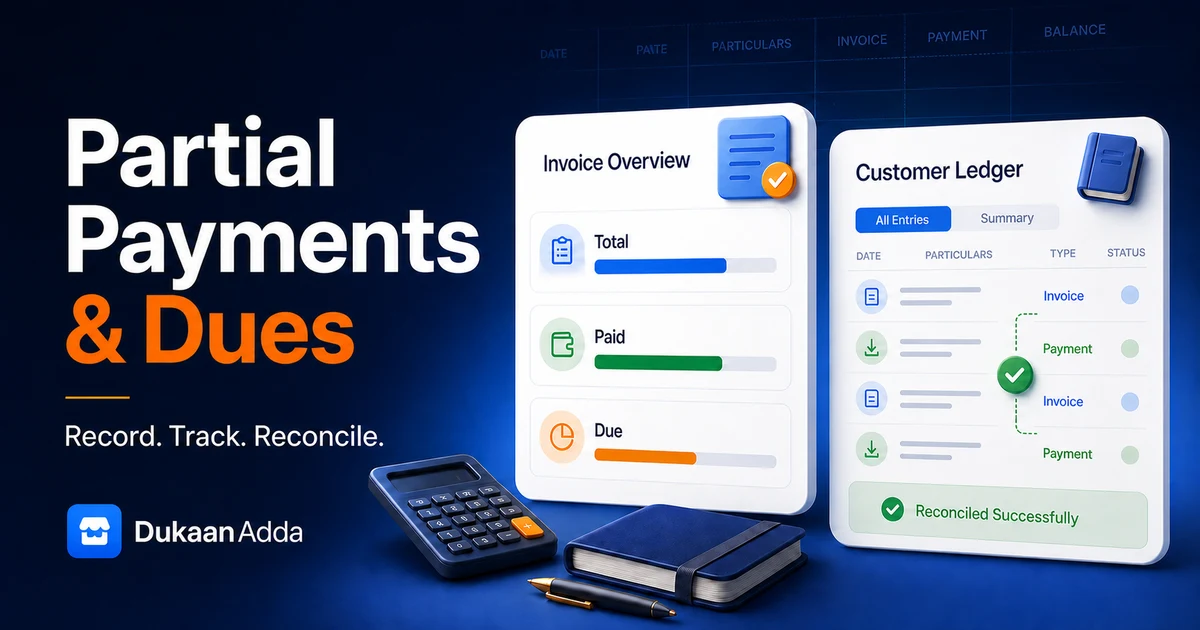
Quick answer
When creating an invoice, enter the amount already received. DukaanAdda calculates due = grand total − paid and marks the invoice Unpaid, Partial or Paid. For money received later against that invoice, use its Record Payment action. Use customer Khata payment only for a general account-level receipt, because that path does not update a specific invoice.
Use the invoice action when the customer names an invoice
Core definitions
Understand Paid, Partial, Unpaid and Overdue
DukaanAdda calculates payment status from the invoice's paid amount and grand total. Overdue is an additional time-based condition: a bill can be both Partial and overdue because part of its balance remains after the due date.
Unpaid
Paid amount is zero
Full grand total remains due
Partial
Paid amount is above zero but below total
Only the balance remains due
Paid
Paid amount equals or exceeds total
Due amount becomes zero
Overdue
Due is positive and due date has passed
Payment status can still be Partial or Unpaid
Amounts are rounded to two decimal places. At finalization, DukaanAdda rejects a negative paid amount or a paid amount above the grand total. A later receipt must also be greater than zero and cannot exceed the remaining due.
Data foundation
Link the invoice to the correct customer record
Select the existing customer from DukaanAdda instead of merely typing a name. A selected customer gives the invoice an explicit customer ID. If no ID is selected, the finalization service may try to match an active customer by phone number; if no usable record is found, the invoice can exist without adding its due to a customer Khata.
- Search and select the intended customer before adding credit.
- Confirm name and phone to avoid a same-name customer mismatch.
- Keep one active customer record per real account.
- Do not use a shared “Walk-in” customer for recoverable credit.
- Review existing balance before approving a new due sale.
- Set an internal credit limit even if the customer requests more.
A due invoice and a Khata balance are related but not identical
Payment terms
Set a realistic due date before finalizing
Invoice Settings provides a default due period. The current default is six days, and the setting accepts zero to 365 days. While creating an invoice, you can also choose a specific due date for that customer and sale.
Default policy
Set a normal term in Invoice Settings.
Customer term
Adjust the invoice due date when justified.
Review date
Use it to drive follow-up and overdue filtering.
Do not choose an arbitrary far-future date simply to keep the overdue list clean. Use written terms appropriate to your business and applicable law. For eligible registered micro and small enterprise suppliers, section 15 of the MSMED Act states that a written agreed payment period cannot exceed 45 days from acceptance or deemed acceptance. Eligibility and facts matter, so obtain professional advice for your case.
At invoice creation
Record full, partial or zero payment while billing
The invoice screen currently presents Cash, UPI and Credit (Khata) as the main payment choices. Cash and UPI allow you to type the amount actually received or tap the full-paid shortcut. Credit (Khata) forces the paid amount to zero and disables the field.
- 1
Complete the commercial invoice
Add items, quantities, discount, GST, other charges and round-off. Confirm the grand total before entering payment. - 2
Select the actual payment method
Choose Cash or UPI when money is being received now. Choose Credit (Khata) when the entire amount remains unpaid. - 3
Enter only the amount received
For a partial payment, type the verified amount. Do not type the promised amount, screenshot amount or amount expected later. - 4
Review Balance Due
The on-screen summary shows Grand Total, Paid Amount and Balance Due. Stop if the result does not match your manual calculation. - 5
Finalize with the correct customer
Finalization saves the payment status and, when the customer is linked, adds only the remaining due to that customer's Khata.
Bank Transfer is supported as a received-payment mode in the later invoice-payment action, but it is not currently one of the three choices shown in the audited create-invoice selector. If the initial receipt is a bank transfer, verify how you want it represented before finalization rather than selecting a misleading mode.
Worked example
Calculate a partial payment without guesswork
Example: ₹18,500 invoice with ₹7,000 received
Grand total
₹18,500
Paid now
₹7,000
Balance due
₹11,500
DukaanAdda marks the invoice Partial. If the customer is linked, ₹11,500 is added to the customer's current due balance and an Invoice Sale ledger transaction is created for that unpaid portion—not for the full ₹18,500.
If the customer later pays ₹5,000 through the invoice action, the invoice paid amount becomes ₹12,000 and due becomes ₹6,500. A final verified payment of ₹6,500 changes the status to Paid. The app will reject an attempted receipt above ₹6,500.
Later collection
Record a later payment against the specific invoice
This is the preferred workflow when the customer says, “I am paying invoice DA-2026-000123.” Open Billing, find the invoice by number, customer or phone, then use Record Payment from the invoice menu or details screen.
- 1
Open a finalized invoice with due balance
Draft, deleted, cancelled and already-paid invoices cannot accept a later payment through this action. - 2
Confirm Invoice total and Remaining due
The sheet shows both values and pre-fills the current due. Replace it with a smaller amount for an instalment. - 3
Select Cash, UPI or Bank
Choose the method through which funds were actually received. Credit is not a receipt, and Card is not offered in this invoice-specific sheet. - 4
Add a useful optional note
Record a bank or UPI reference, collection context or staff note. Notes can be up to 300 characters. - 5
Record only after verification
Saving requires internet. DukaanAdda updates the invoice within a transaction and refreshes the cached bill after success.
When the invoice has a linked active customer, the same operation also reduces that customer's outstanding balance and creates a ledger item titled Payment Received. The subtitle includes the invoice number, payment mode and your note. This provides a much stronger audit trail than a general customer-level receipt.
Internet is required
Customer account
Use customer-level Khata payment for an overall receipt
The Khata Record Payment / Collect flow is useful when the customer makes one payment against their general account rather than naming one invoice. It pre-fills the combined customer balance—current due plus overdue—and accepts a smaller amount.
What it updates
- Customer due and overdue balances
- Customer paid-amount summary
- Khata Payment transaction and running balance
What it does not update
- Specific invoice paid amount
- Specific invoice due amount
- Specific invoice payment status or mode
The customer payment flow offers UPI, Cash, Bank and Card. It rejects zero and negative amounts. When a receipt exceeds the outstanding balance, it previews the settled and advance portions and saves the surplus as advance automatically. Reference notes remain useful for traceable payment context.
For broader customer credit controls, combine this article with the Khata and Udhar management guide.
Decision rule
Choose invoice payment or Khata payment correctly
Do not record the same money in both places
Balance logic
Understand how DukaanAdda applies a customer payment
When a received payment affects a linked customer, DukaanAdda applies it to the customer's overdue balance first. Any remainder then reduces current due. The ledger transaction stores the resulting running balance as overdue plus due.
Example: ₹3,000 overdue + ₹5,000 current due
Starting balance
₹8,000
Payment
₹4,500
Overdue left
₹0
Current due left
₹3,500
This customer-level allocation is not an invoice-by-invoice settlement engine. The ledger can say the customer balance fell while several invoice statuses remain unchanged if the receipt was entered only through Khata. Reconcile important accounts against the invoice list, not just the total balance card.
Khata adjustments
Use manual debit and credit entries carefully
DukaanAdda's Add Debit / Credit Transaction dialog supports two balance-affecting entry types. In this screen, credit means payment received and reduces the customer balance, while debit means goods or dues added and increases the current due balance.
Credit / Payment Received
Reduces overdue first, then current due. Any surplus is stored as customer advance automatically.
Debit / Goods Added
Adds the entered amount to current due. It is a manual ledger entry, not an itemized tax invoice.
The dialog supports UPI, Cash, Bank Transfer and Card, plus a selected transaction date, reference and notes. Use a reference that another staff member can understand later. Do not use a manual debit as a substitute for an invoice when the sale needs stock movement, item detail, GST particulars or a customer document.
Collection queue
Track overdue invoices from Billing—not only customer totals
The Billing screen includes All Invoices, Paid, Unpaid and Overdue filters. It can identify finalized invoices that still have a positive due and whose due date has passed. Partial invoices display a Partial status, but there is not a separate Partial tab in the current filter set.
- Start with Overdue to identify immediate follow-up.
- Search by invoice number, customer name or phone.
- Open the invoice and confirm its live remaining due.
- Record the receipt from that invoice whenever possible.
- Review Partial invoices from All Invoices when needed.
- Compare invoice dues with the customer ledger before closing disputes.
Customer overdue summary is a separate balance field
Payment control
Verify the money before recording the receipt
DukaanAdda stores the payment information you enter; it does not independently confirm cash, bank or UPI settlement. Match the amount and source before changing an invoice or ledger balance.
Cash
Count it, check denomination and issue the agreed receipt.
UPI
Confirm credit and transaction status in your trusted receiving app.
Bank
Match the credited amount, date and bank reference.
NPCI says transaction history can show past and pending UPI transactions, and merchants can check status or raise a grievance through their acquiring bank. A customer screenshot is not a substitute for checking your own receiving account. For the full safety workflow, read the UPI QR invoice payment guide.
Reconciliation
Review transactions and export a customer ledger statement
The customer Khata transaction screen shows sale and payment entries with running balances. Filters support the last seven days, last 30 days or all time, plus All, Sale or Payment type. The Statement action generates a PDF for the selected scope.
The PDF statement includes
- Customer name, phone and address
- Total added and total paid in the selected scope
- Current combined balance
- Date, particulars and transaction type
- Amount and stored running balance
- Statement generation date and time
Use the statement for reconciliation and customer discussion, but keep invoices and payment evidence too. CBIC's official accounts-and-records rules require registered persons to maintain true and correct records with relevant documents, including invoices and specified vouchers. Your exact legal and tax records should be confirmed with a qualified professional.
Error prevention
Prevent duplicate, wrong and untraceable payment entries
Same receipt entered in invoice and Khata
Use one path only. Invoice-specific payment already writes a linked customer ledger entry.
Khata receipt used for a named invoice
The customer balance falls, but that invoice remains due. Prefer the invoice Record Payment action.
Wrong customer selected
Verify name, phone and current balance before saving. Same-name customers need a second identifier.
Promised UPI amount recorded before credit
Wait for receiving-side confirmation. Pending or screenshot-only evidence is not settlement.
Full due accepted in the pre-filled field by accident
Replace the pre-filled amount with the actual instalment and recheck Remaining due before saving.
Bank or UPI reference omitted
Use optional notes consistently so future reconciliation can match the ledger to external evidence.
Manual debit used instead of an invoice
Create an invoice when item, stock, GST or customer-document details matter. Manual debit only adjusts the ledger.
Payment entered while offline on paper and again later
Keep one pending-entry register with invoice number, amount, mode and reference; mark it posted after the single successful save.
There is no dedicated invoice-payment reversal in the audited flow
Current product scope
Know the current partial-payment limitations
Khata payment does not settle invoices
Customer advance is supported
No dedicated Partial filter
Invoice receipts require internet
Customer overdue and invoice overdue are separate
The invoice UPI QR still uses grand total
Official business-record and payment references
These primary sources provide background for payment evidence, record retention and delayed-payment awareness. They do not replace advice for your specific business.
FAQ
Frequently asked questions about partial payments and dues
Can I create a partially paid invoice in DukaanAdda?
Yes. Select Cash or UPI while creating the invoice and enter an amount greater than zero but lower than the grand total. DukaanAdda calculates the remaining due and marks the invoice Partial.
What happens when I select Credit (Khata) during billing?
The paid amount is forced to zero and disabled. After finalization, the invoice is Unpaid and its full grand total becomes due. If a valid customer record is linked, the due is also added to that customer's ledger.
How do I record payment against one specific invoice?
Open Billing or the invoice details, choose Record Payment, enter an amount up to the remaining due, select Cash, UPI or Bank and save. This updates that invoice and, when linked, the customer ledger.
Does recording a payment from Khata update a specific invoice?
No. The customer-level Khata payment reduces the customer's overall outstanding balance and writes a ledger transaction, but it does not change an individual invoice's paid amount, due amount or status.
Can a payment be larger than the remaining due?
No. Both invoice-specific and customer-level payment workflows reject an amount greater than the relevant remaining balance. Record and resolve any genuine overpayment outside the normal due-collection workflow with a documented accounting process.
Which payment modes are available for a later invoice payment?
The invoice-specific Record Payment sheet currently supports Cash, UPI and Bank Transfer. Credit is not a received-payment mode, and Card is not included in this specific invoice-payment sheet.
Which balance does a customer-level payment reduce first?
DukaanAdda applies a customer-level or linked invoice payment to overdue balance first, then to current due balance. The ledger stores the resulting combined running balance.
Do I need internet to record a payment?
Yes. Recording a later invoice payment requires internet. Khata balance-affecting entries also require an online plan and account check before they are saved.
How is an overdue invoice identified?
A finalized invoice with a positive due amount becomes overdue after its due date. The Billing screen can filter overdue invoices using payment status and due date.
Can I download a customer ledger statement?
Yes. The customer Khata transaction screen can generate a PDF statement for the selected 7-day, 30-day or all-time period and for all, sale-only or payment-only transactions.
Can I edit or reverse a wrongly recorded invoice payment?
The audited current workflow does not provide a dedicated invoice-payment reversal action. Verify the invoice, amount, mode and reference before saving, and use a controlled support or accounting correction process if an error occurs.
One receipt, one correct record
Keep every invoice and customer balance explainable
Record the verified amount once, use the invoice action for named bills and reconcile customer Khata with invoice dues before the balance becomes a dispute.