
Complete Barcode Billing and Scanner Setup Guide for Small Shops
Build a clean product-barcode catalog, scan items with an Android camera, handle Windows entry correctly and turn each successful scan into faster, more accurate billing.
Quick answer
First save a unique barcode on every active inventory product. On Android, open Fast Bill and tap the scanner icon, allow camera access and align the product code inside the frame. DukaanAdda finds the exact stored barcode and adds the product to the bill. On Windows, the same action currently opens manual barcode entry.
A scanner cannot repair weak product data
Core workflow
Understand how barcode billing works in DukaanAdda
A product barcode is an identifier, not the product record itself. DukaanAdda stores the code with the inventory item. During billing, the scanner returns a raw value and the app looks for one active, non-deleted product whose stored barcode exactly matches that value.
Store
Save the code once.
Read
Camera or manual input.
Match
Exact active-product lookup.
Add
Product enters the bill.
The matched product supplies its saved name, unit, selling price, tax configuration, version and inventory identity to the bill. This is why scanning should be treated as a shortcut to trusted inventory data—not a replacement for maintaining it.
Catalog setup
Prepare products before using barcode billing
- Product name is clear and not duplicated unnecessarily.
- Barcode is saved exactly as printed, including leading zeroes.
- Selling price and unit are correct before counter use.
- GST applicability and rate are configured for GST billing.
- Current stock and minimum-stock alert are maintained.
- The product remains active and available for billing.
Barcode is optional on the product form, so you can start with products that already carry a manufacturer code and add the rest later. Do not invent a value casually. If your shop uses internal codes, follow one documented pattern and avoid reusing a code after a product is discontinued.
DukaanAdda also supports product search by name, SKU, barcode and brand. This remains an important fallback when a label is damaged or a product does not have a barcode.
Product setup
Assign or scan a barcode on the product form
- 1
Open Add Product
Go to Inventory and create a product. Complete the name, category, unit, purchase price, selling price, stock and tax fields that your billing workflow needs. - 2
Open the barcode scanner
In the optional Barcode field, use the scanner action. On Android, allow camera permission and point at the code. You can switch the camera, enable the torch or move to manual entry. - 3
Confirm the captured value
Compare the saved value with the human-readable code printed below the bars. Preserve leading zeroes and do not add spaces before or after the code. - 4
Save online
Creating and updating products currently requires internet access. At save time, DukaanAdda checks whether another active product already uses the same barcode.
Existing barcode protection
Data quality
Follow five barcode rules that prevent lookup failures
Store the exact value
Barcode lookup is exact. An extra digit, missing leading zero, different letter case or invisible copied space can prevent a match.
Keep each active barcode unique
One code should identify one active product. DukaanAdda blocks an online save when another active product already owns that barcode.
Treat the code as text
Do not convert it to a number in spreadsheets or notes. Numeric conversion can remove leading zeroes and change a valid identifier.
Use no more than 64 characters
The current barcode field and manual scanner entry enforce a maximum length of 64 characters.
Test the physical label
A code saved by typing may still be hard for a camera to read if the print is tiny, glossy, curved, faded or damaged.
Camera setup
Set up barcode scanning on an Android phone
- 1
Clean the camera and label
Wipe the camera lens and flatten the product label when possible. Use even light without a sharp reflection across the bars. - 2
Allow camera permission
DukaanAdda requests camera access when the scanner opens. If permission is permanently denied, use Open Settings and enable Camera for the app. - 3
Align one code in the frame
Hold the phone steady and place the entire barcode inside the scanning frame. Avoid showing a nearby payment QR or a second product label at the same time. - 4
Use the scanner controls
Turn on the torch in low light or switch between available cameras. If the camera still struggles, choose Enter Barcode Manually and type the printed code.
The scanner accepts the first non-empty detected raw value and closes. This makes the flow fast, but it also means the operator should keep only the intended code inside the frame.
Counter workflow
Scan products into Fast Bill
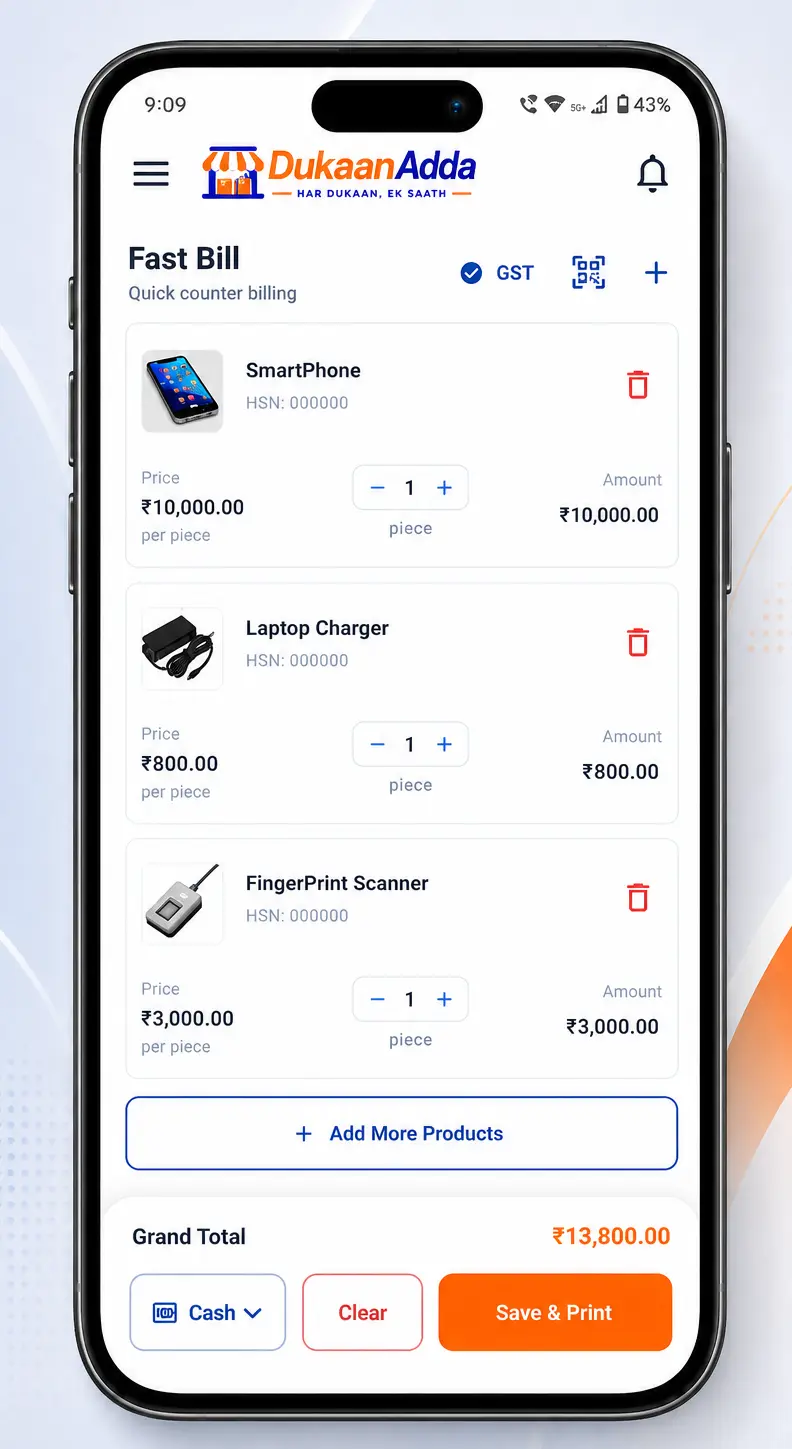
Fast Bill is designed for quick counter entry. The empty state offers search, barcode scan and manual-item options. On Android, tap the barcode/scan icon near the Fast Bill heading, scan the product and wait for it to appear before moving to the next item.
Fast Bill
Scan, verify, then continue
A successful scan adds the matched inventory product. Check its name, price, quantity and stock warning before scanning the next label. Use Save & Print only after payment mode and bill totals are correct.
If no product matches, Fast Bill shows “Product not found for this barcode.” Search by name or SKU to confirm whether the product exists, then correct or add its barcode from Inventory.
Full invoice
Scan a product into a detailed invoice
The full Create Invoice screen uses the same product-barcode lookup. Depending on the screen layout, its scanner button is labelled Scan QR, but the action opens the shared product barcode scanner and passes the result to product lookup.
Do not confuse product and payment QR codes
Use the detailed invoice workflow when you need fuller customer, delivery, payment, tax or invoice information. Barcode scanning only changes how the product is selected; the rest of the invoice still needs review.
Quantity behaviour
Know what happens when the same barcode is scanned again
DukaanAdda identifies an existing bill line by product ID. When the scanned product is already present, another scan increases its quantity by one. It does not create a second row for the same inventory product.
First scan
Adds a new product line at quantity one.
Next scan
Increases the existing line quantity by one.
Current limit
Up to 50 units per line and 50 unique products.
For multiple identical units, repeated scanning can be convenient. For a large quantity, use the quantity control and verify available stock instead of scanning dozens of times.
Desktop behaviour
Use barcode entry on Windows and understand handheld scanners
The current shared scanner flow uses live camera scanning on Android and iOS targets. On Windows, pressing the Scan action opens a manual-entry dialog with a focused barcode field. Type or paste the value and submit it for exact product lookup.
Current reliable method
Open the scanner action, enter the code in Manual Entry and submit. Product search can also find partial barcode, SKU, brand or name text.
Handheld scanner limitation
There is no dedicated global USB/Bluetooth scanner listener that automatically adds a product from anywhere in Fast Bill.
A keyboard-wedge scanner behaves like a keyboard and may type into the focused manual field. If it appends Enter, the dialog may submit through the field's done action. This is device-dependent behaviour, not a guaranteed dedicated integration. Test the exact scanner before designing a busy Windows counter around it.
Connectivity
Understand offline barcode lookup
When the device is offline, the inventory repository searches locally cached products and returns a product only when its stored barcode exactly equals the scanned value. This can keep familiar products discoverable when connectivity drops.
Can work offline
Exact lookup for an active product already available in the device's product cache.
May fail offline
A new or changed product that has never been cached on that device. Product create/update also requires internet.
Before a high-volume offline period, open and sync the relevant inventory while online. Reconnect and sync after billing so product, stock and sales records can be reconciled.
Billing accuracy
Connect barcode scans with stock, price and tax
Scanning selects the product record; it does not freeze or invent commercial values. Fast Bill takes the saved selling price and unit. In GST mode it applies the product's tax applicability and configured rate, using the business default where the product is taxable but its rate is zero.
| Data | Where it comes from | Counter check |
|---|---|---|
| Product | Exact barcode match | Correct item name |
| Price | Saved selling price | Matches shelf price |
| Unit | Saved product unit | Piece, kg, box, etc. |
| GST | Bill type + product tax setup | Correct rate |
| Stock | Tracked inventory product | Enough quantity |
Fast Bill prevents final save when one or more tracked items do not have sufficient stock. It can also surface a low-stock warning. Correct the quantity or stock record instead of bypassing the product with a manual item, because manual items are not stock-tracked.
Problem solving
Fix common barcode scanning and billing problems
Camera permission denied
Open Android Settings → Apps → DukaanAdda → Permissions and allow Camera, then reopen the scanner.
Camera cannot focus
Increase distance slightly, hold steady, clean the lens, flatten the label and use the torch without creating glare.
Scanner reads the wrong code
Keep only one label inside the frame and move payment QRs or nearby products away from the camera view.
Product not found
Search inventory by name, SKU or barcode, confirm the product is active and compare the stored value character by character.
Leading zero disappeared
Re-enter the barcode as text exactly as printed. Avoid spreadsheets or numeric fields that convert identifiers to numbers.
Duplicate-barcode error
Find the existing product using that code. Update the correct record rather than creating another active product.
Wrong product is added
Inspect duplicate legacy records and the saved barcode. One active barcode should belong to one product only.
Same scan increases quantity
This is expected when the product is already on the bill. Use minus or quantity controls if the extra scan was accidental.
Product is unavailable
Deleted or inactive products cannot be added. Reactivate or replace the inventory record intentionally.
Barcode works online but not offline
The product may not exist in local cache. Reconnect, load/sync inventory and test the device again before going offline.
Windows camera does not open
Current Windows behaviour is manual barcode entry. Use the focused field or product search instead of expecting the mobile camera dialog.
Handheld scanner does nothing
Open Manual Entry first and test whether the scanner types as a keyboard. Dedicated global hardware-scanner capture is not currently implemented.
Daily operations
Build a reliable barcode-billing counter routine
Before opening
- Sync product catalog
- Test three different labels
- Check price and stock
During billing
- Scan one product at a time
- Verify item and quantity
- Use search as fallback
At closing
- Review Product not found cases
- Fix duplicate or damaged labels
- Sync completed records
Keep a small exception list at the counter: unlabelled products, damaged labels, new products and codes that failed lookup. Correct those records after the rush instead of repeatedly typing the same product every day.
Current product scope
Understand the current barcode-feature limitations
No dedicated barcode-label generator
No global hardware-scanner listener
Exact lookup is intentional
These boundaries matter when choosing counter hardware. For an Android-first shop, the built-in camera scanner and manual fallback are the verified path. For a Windows counter that depends on rapid handheld scanning, test the exact keyboard behaviour before purchase or submit a feature request for a dedicated scanner workflow.
FAQ
Frequently asked questions about barcode billing
How does barcode billing work in DukaanAdda?
A product stores an optional barcode. During billing, DukaanAdda reads or accepts a code, performs an exact lookup for an active product, and adds that product to the bill using its saved name, unit, price and tax settings.
Can I scan product barcodes with an Android phone camera?
Yes. The Android flow requests camera permission and opens a live scanner with a scan frame, torch control, camera switch and manual-entry option. The first detected raw code is returned for product lookup.
Does barcode camera scanning work on the Windows app?
The current Windows scan action opens a manual barcode-entry dialog instead of a camera scanner. You can type or paste the code. A keyboard-wedge handheld scanner may enter data into the focused field, but DukaanAdda does not currently provide a dedicated hardware-scanner capture service.
Can two active products use the same barcode?
No. When a product is saved online, DukaanAdda checks active, non-deleted products and returns a duplicate-barcode error if another product already uses the same stored code.
What happens when I scan the same product twice?
If the product is already on the bill, another scan increases that line quantity by one instead of creating a duplicate line. The current bill validator allows up to 50 units per product line.
Why does a valid-looking barcode show Product not found?
Barcode billing uses an exact stored-code lookup. Confirm the product is active, the same code was saved without missing characters or spaces, letter case matches for alphanumeric codes, and leading zeroes were preserved.
Can I enter a barcode manually?
Yes. The scanner includes Enter Barcode Manually, and non-camera platforms open manual entry directly. The field accepts a non-empty code up to 64 characters.
Can barcode lookup work without internet?
It can match an exact barcode against products already available in the local cache. A product that has never been cached on that device may not be found offline, and creating or updating products currently requires internet access.
Does DukaanAdda generate or print barcode labels?
The verified current workflow stores, scans and searches product barcode values. It does not include a dedicated barcode-label design and batch-printing workflow in the audited feature set.
Does scanning automatically reduce stock?
Scanning adds the saved product to the bill. Stock is affected through the completed sale workflow, not merely by opening the scanner. Fast Bill checks for insufficient stock before final save.
Can I use a QR code as a product code?
The camera library can return a raw detected code, but product billing only succeeds when that exact value is stored in an active product's barcode field. A payment QR or unrelated QR will normally return Product not found.
Faster counter billing
Scan trusted product data—not just printed bars
Maintain accurate products, scan one code at a time, verify the bill and let DukaanAdda connect barcode selection with stock, price, GST and thermal printing.