
7 Fast Billing Tips to Save Time in Your Shop
A fast checkout is not about tapping randomly. It comes from clean product data, a repeatable counter workflow, the right payment record and a receipt that works the first time.
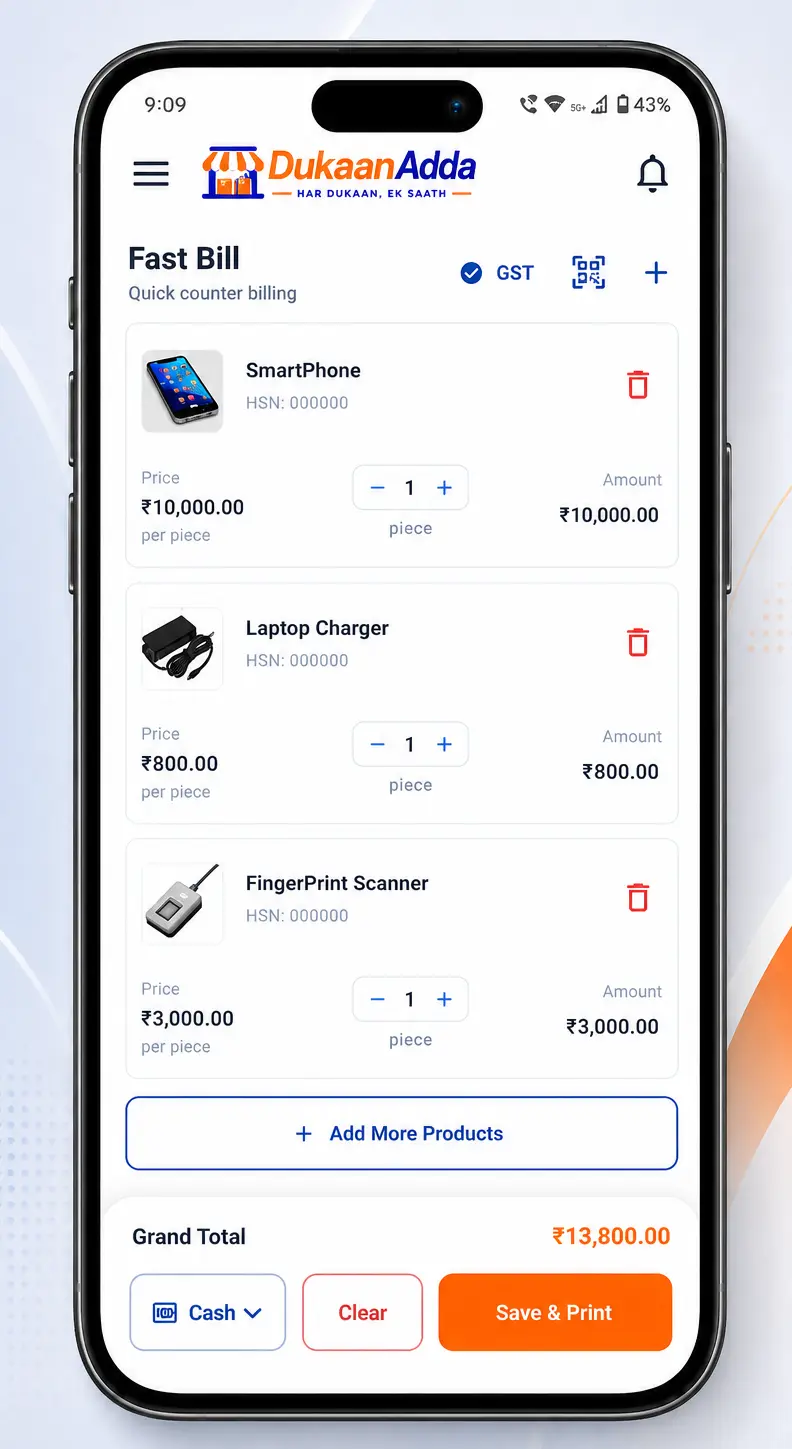
Quick answer
How do you make shop billing faster?
Prepare products, prices, tax and barcodes before the counter gets busy. During a sale, use search or barcode, confirm quantity, select the real payment mode, attach a customer to every Due bill, respect stock warnings, then use Save & Print. The biggest time saving comes from removing corrections, not from skipping verification.
At a busy Indian retail counter, a few extra seconds on every bill quickly become a queue. Common causes include unclear product names, repeated price entry, wrong stock, unidentified credit customers and printer problems. Faster billing therefore begins before the customer reaches the counter.
DukaanAdda provides a focused Fast Bill flow on Android and Windows. It supports product search, barcode scanning, manual items, GST or non-GST billing, Cash, UPI and Due payment modes, inventory checks, thermal preview and printing. The practices below turn those verified features into a dependable routine.
The foundation
What fast billing really means
Billing speed has three parts: finding the correct item, recording an accurate sale and delivering the receipt smoothly. A 20-second bill that needs a correction later is not fast. It creates stock differences, payment mismatches and customer confusion.
A reliable counter reduces repeated typing, catches impossible quantities, preserves the payment trail and makes the final total easy to review. Your goal is a short sequence that every trained operator can repeat during quiet and peak hours.
Find
Search or scan the correct product.
Verify
Check quantity, tax, total and payment.
Finish
Save first and print after review.
Before opening
Prepare your billing counter before the rush
Product setup is where most future seconds are saved. A vague name such as “Soap 1” forces the operator to compare variants. A clear name containing brand, pack size and unit makes search predictable. Also verify selling price, unit, barcode, tax applicability, GST rate, opening stock, minimum stock and reorder level.
- Add recognisable product names.
- Save a unique SKU or barcode.
- Verify price, unit and GST rate.
- Enter opening and minimum stock.
- Configure invoice numbering.
- Print a test receipt before opening.
Use one source of truth
Fast billing tip 1
Choose Fast Bill or full invoice before you start
Use Fast Bill for routine counter sales where the priority is adding items, choosing a payment mode and saving or printing quickly. Use the full invoice flow when the transaction needs a due date, expanded customer details, notes, additional charges, a specific template or more document control.
| Situation | Use | Why |
|---|---|---|
| Regular walk-in sale | Fast Bill | Short counter flow |
| Cash or UPI, few items | Fast Bill | Quick selection and save |
| Detailed terms or charges | Full invoice | More document controls |
Choosing the correct flow at the beginning is faster than reaching the end of Fast Bill and discovering the customer needs details available in the full invoice workflow.
Fast billing tip 2
Search or scan instead of typing the sale again
For existing inventory, start with product search. Type a distinctive part of the name and select the correct result. This reuses the saved price, unit, tax and stock record and is safer than recreating an item manually on every bill.
Barcode scanning removes more navigation for packaged goods. Save each barcode against the exact variant, then test common items. A barcode improves speed only when it identifies one correct product; wrong or duplicated data creates a fast but incorrect bill.
Use search
For loose goods, unreadable barcodes or distinctive product names already known by the operator.
Use barcode
For packaged items with clean, unique barcode values saved against the correct inventory variant.
After adding the item, adjust quantity deliberately. The saved unit should match how the business prices and stocks the product. A quantity entered in the wrong unit affects both the total and remaining stock.
Fast billing tip 3
Use manual items for exceptions, not everyday products
Fast Bill allows a manual item when a product is not in inventory. Enter its name, quantity, unit, rate, discount, GST percentage and HSN or SAC. This is useful for a one-time service, an occasional item or something not yet catalogued.
Manual entry is slower and easier to mistype than a prepared product. If the same item appears regularly, create a proper inventory record after the rush. Future operators can search or scan it, while product-level stock and reporting stay more consistent.
Manual-item review
Fast billing tip 4
Set tax data once, then verify the bill type
Tax mistakes create expensive corrections. In inventory, record whether a product is taxable and its GST rate. At billing time, Fast Bill lets you choose GST or non-GST. That choice must follow your registration and the transaction; it is not merely a visual preference.
Check item rate, discount, taxable value and displayed tax before saving. For a manual item, be extra careful because the tax values do not come from a prepared product record.
Read the detailed GST guide
Fast billing tip 5
Record Cash, UPI or Due exactly as received
Fast billing also needs a trustworthy payment record. DukaanAdda supports Cash, UPI and Due/Credit. Select what actually occurred. Recording a UPI sale as cash may not change the bill total, but it makes closing reconciliation harder.
Cash
Physical cash collected.
UPI
Confirm receipt in the real account.
Due
Attach the correct customer.
Due requires a customer in the verified Fast Bill workflow. This prevents credit from becoming an unidentified balance. Select the right customer, verify contact details when needed and use the customer ledger to review sales, payments, balance and overdue activity.
UPI selection is not payment confirmation
Fast billing tip 6
Treat stock warnings as counter controls
Fast Bill checks inventory, displays low-stock and out-of-stock conditions and blocks a quantity above available stock. These controls prevent an operator from completing an impossible sale based on memory.
When a warning appears, check the physical item and product record. Stock may genuinely be finished, a recent purchase may not be recorded, or the wrong variant may be selected. Fix the cause instead of billing a similar product just to continue.
1. Pause
Do not save an impossible quantity.
2. Check
Match the shelf item and product variant.
3. Correct
Update stock through the right workflow.
Minimum-stock and reorder settings help before stock reaches zero. Review low-stock products and replenish them. Warnings can only be accurate when opening stock and later changes are recorded correctly.
Fast billing tip 7
Review once, then Save & Print
Before the final action, scan the cart from top to bottom: item, quantity, rate, discount, GST choice, customer when required, payment mode and grand total. This review is faster than correcting an issued transaction.
Use Save when no paper receipt is required. Use Save & Print when the counter should complete both actions together. On Windows, Fast Bill supports Ctrl+S to save and Ctrl+P for the print flow. Shortcuts help trained operators after review.
Windows counter
Use search and trained shortcuts with the printer connected and tested before opening.
Android counter
Use the focused touch flow, barcode scanning and a supported Bluetooth Classic or USB printer.
DukaanAdda workflow
Create a Fast Bill step by step
- 1
Open Fast Bill
Choose the quick counter flow from app navigation.
- 2
Choose GST or non-GST
Use the correct bill type for the transaction.
- 3
Add items
Search, scan, or use Manual Item only for an exception.
- 4
Check quantity and stock
Resolve warnings instead of ignoring them.
- 5
Review pricing and tax
Check rate, discount, tax and grand total.
- 6
Select payment
Choose Cash, UPI or Due; attach a customer to Due.
- 7
Save or Save & Print
Finish after a final item and payment review.
Keep the same order for every operator. A consistent sequence makes training easier and reduces the chance that tax, stock, customer or payment review is forgotten during a rush.
Receipt workflow
Set up thermal printing for a reliable counter
DukaanAdda includes thermal preview and printing for supported Bluetooth Classic and USB thermal printers. Common 58 mm and 80 mm widths are represented. Actual compatibility depends on the printer, connection, permissions and device, so test before using it during live sales.
- Printer has power and paper.
- Selected width matches the roll.
- Bluetooth or USB is connected.
- Business header is readable.
- Long item names wrap correctly.
- A test receipt prints cleanly.
Keep a spare paper roll near the counter and teach staff how to replace it. A short pre-opening hardware check is better than troubleshooting while customers wait. The relevant DukaanAdda workflow can also prepare a thermal-style share image when a customer prefers a digital copy.
Team process
A daily fast-billing SOP for small shops
A standard operating procedure keeps speed from depending on one experienced cashier. Train every operator on the same sequence:
- 1Open the app and sync pending data when connectivity is available.
- 2Check printer power, paper and the correct width.
- 3Review products that are already low in stock.
- 4Verify one sample price, tax choice and invoice number.
- 5Use search or barcode; reserve manual items for exceptions.
- 6Attach a customer to every Due sale and confirm payment aloud.
- 7At closing, compare reports with cash and actual UPI collections.
During training, accuracy comes first. Let new operators repeat the process with sample products and a test printer. Speed follows once product names, controls and the final review become familiar.
Continuous improvement
Measure the problems that actually slow billing
Do not optimise only for seconds. Track a few indicators for a week, fix the largest repeated cause, then measure again.
| Metric | What it reveals | Likely action |
|---|---|---|
| Average bill time | Overall speed | Improve names or barcode coverage |
| Manual items | Catalogue gaps | Create inventory products |
| Corrections | Entry or review errors | Strengthen final checks |
| Stock warnings | Data or reorder gaps | Review stock updates |
| Due customer gaps | Untraceable credit | Require customer selection |
| Printer failures | Hardware instability | Test before opening |
DukaanAdda report workflows cover sales, products, customers, payments, GST and profit-and-loss information. At closing, compare recorded modes with the cash drawer and actual UPI collections. The goal is to catch process problems early.
Avoid these
Common fast-billing mistakes
Creating every line manually
Repeated work weakens consistent product stock tracking.
Using unclear product names
Similar variants are easy to confuse in a rush.
Ignoring stock warnings
The system and physical shelf stop matching.
Marking UPI too early
A selected mode does not prove payment receipt.
Wrong customer on Due
Credit becomes difficult to collect later.
Choosing GST casually
Tax must follow the real transaction.
Testing printers at peak time
Hardware should be ready before the queue.
Speed before accuracy
Corrections consume more time later.
FAQ
Fast billing questions from shop owners
What is the fastest way to create a bill in DukaanAdda?
Open Fast Bill, find an existing product by search or barcode, verify quantity, choose Cash, UPI or Due, and use Save or Save & Print. Reliable speed depends on accurate product, stock, tax and printer settings.
Can I add an item that is not already in inventory?
Yes. Manual Item supports a name, quantity, unit, rate, discount, GST rate and HSN or SAC. Use it for exceptions; save frequently sold products in inventory for faster future billing and consistent stock tracking.
Does Fast Bill support barcode scanning?
Yes. Save a unique barcode against the correct product first. Scanning is fast only when the barcode data and product variant are accurate.
Which payment modes are available in Fast Bill?
The verified workflow supports Cash, UPI and Due or Credit. A Due bill requires a customer so the outstanding amount remains connected to the correct account.
Can I create a non-GST bill?
Fast Bill includes GST and non-GST choices. Select the correct treatment for your business and transaction. A business that is not authorised to collect GST must not charge it merely because the option is available.
What happens when stock is too low?
Fast Bill displays low-stock and out-of-stock warnings and blocks a quantity above available stock. Check the physical item and correct the stock record through the proper workflow.
Can DukaanAdda print a thermal receipt?
Yes. DukaanAdda includes thermal preview and printing for supported Bluetooth Classic and USB thermal printers, with common 58 mm and 80 mm paper widths. Compatibility depends on the printer, connection and device.
Is Fast Bill the same as the full invoice screen?
No. Fast Bill is optimised for quick counter sales. Use the full invoice flow when you need more customer detail, due date, notes, charges, templates or document-level control.
Can I use keyboard shortcuts on Windows?
Yes. Fast Bill supports Ctrl+S to save and Ctrl+P for the print flow on desktop. Review the total and payment mode before using either shortcut.
Does DukaanAdda generate an e-way bill from Fast Bill?
No. The current app does not claim direct e-way bill generation, e-invoice IRP registration or GST portal filing. Complete any legally required portal process separately.
Build a faster, more reliable billing counter
Use DukaanAdda for billing, inventory, customers, khata, reports, thermal printing and marketplace workflows on Android and Windows.
Download DukaanAdda